Califia Farms - Password Change Guide
Contents
Which Section Of This Guide to Use
Staff Not Issued a Califia Farms PC, Mac Users and
Contractors
Ross Users Only (Update The New Password in Ross)
Which
Section Of This Guide to Use
Please identify which type category of user you are. Next, navigate to that section of the guide:
On-Premise Staff - Your Califia PC is primarily connected at the Califia Farms offices.
Hybrid Staff - Your Califia PC is sometimes connected at the Califia Farms offices, but you may be away from the office for one or more days at a time.
Staff Working Remotely - Remote or “Local Flex” users. Your Califia PC is never connected at the Califia Farms offices. You utilize a VPN (such as “Global Protect”) when working remotely.
Staff Not Issued a Califia Farms PC and Mac Users - You have a Califia Farms e-mail account but were not issued a PC from Califia Farms IT Department or you have a Mac laptop issued.
Note:
❖ If you have questions about which type of user you are, please reach out to the Califia Farms IT Department staff.
❖
For the
purposes of this document, a VPN is software such as “Global Protect” that
allows you to access on-premise resources, like file-shares and Ross, remotely.
❖ MFA (Multi-Factor Authentication) is the authentication method involving using your phone to verify your identity, after entering your password.
❖ After updating your password, you will need to provide the new password to re-authenticate to programs on your PC (Outlook and MS Teams). Please keep the phone that receives MFA codes handy, as you will need it to verify your identity. Also note you will be asked to sign back in MS Teams and Outlook on your phone.
On-Premise Staff
Before Your Password Expires
15-days before your password expires, you will receive daily e-mails encouraging you to update your password.
To update your password:
- Log into your computer as normal
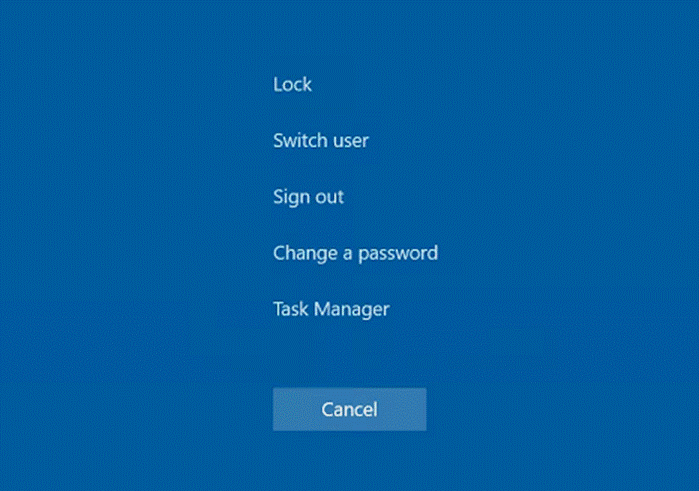
- From the desktop, press and hold CTRL + ALT + DEL until the
following screen appears:
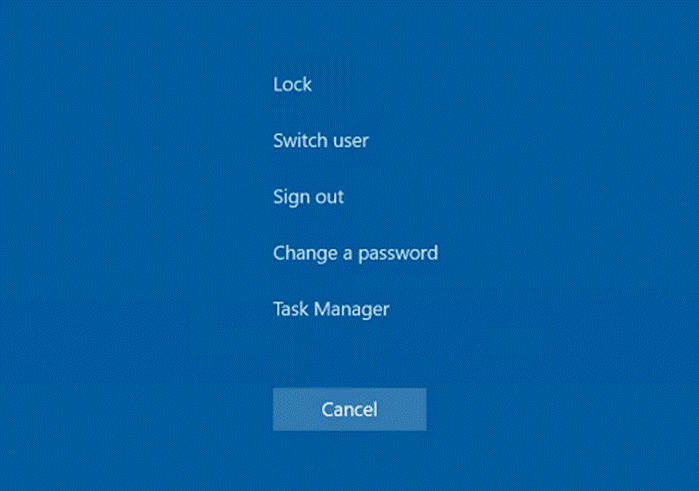
- Select “Change a password”
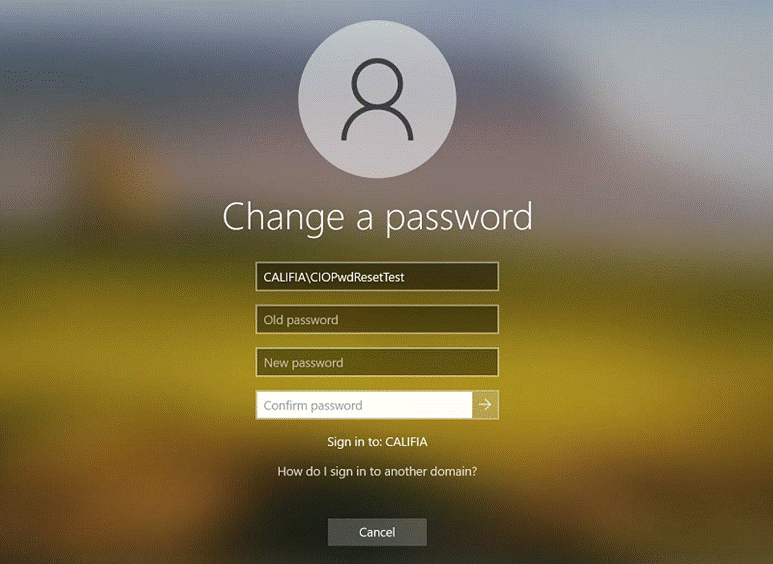
- On the following screen:
- Enter your Old Password
- Enter your New Password
- Enter your New Password again to confirm
- Click the Arrow button
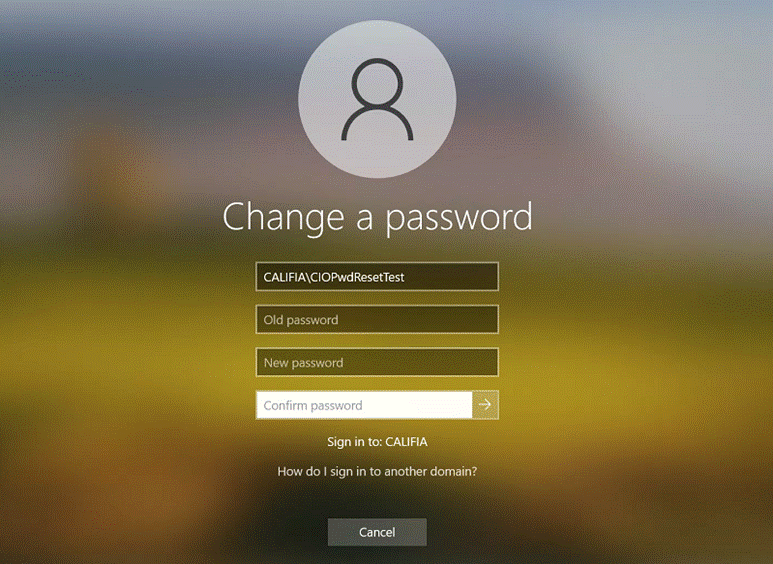
- Your password is now updated.
If Your Password Has Expired
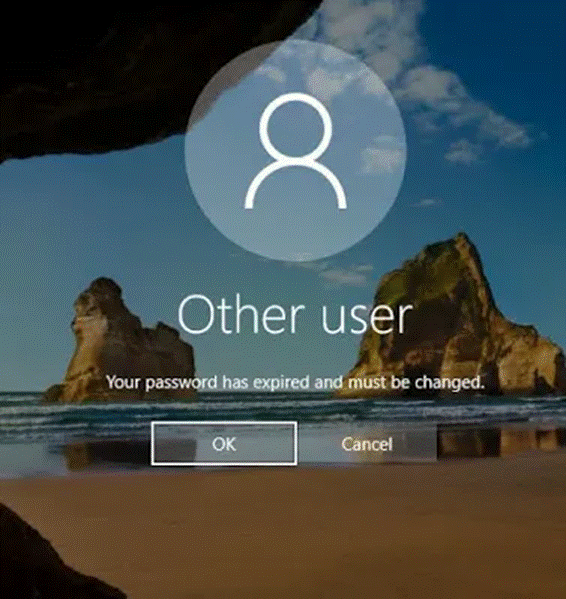
You will be forced to update your password before logging in.
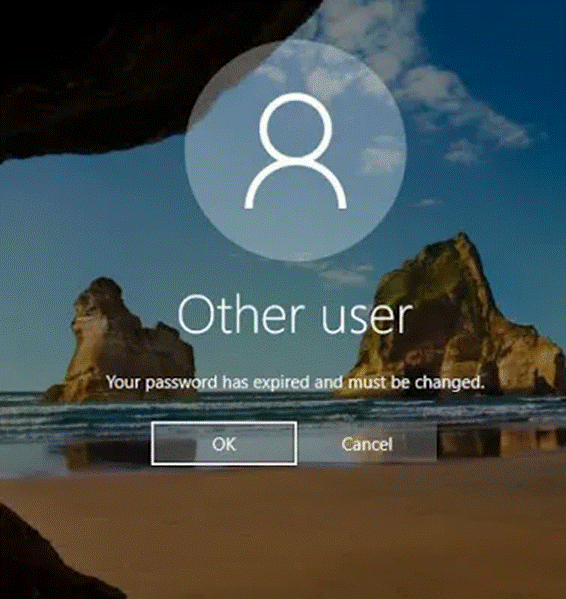
- Log into your PC as normal, at the following screen, click “OK”
- On the following screen:
- Enter your Old Password
- Enter your New Password
- Enter your New Password again to confirm
- Click the Arrow button
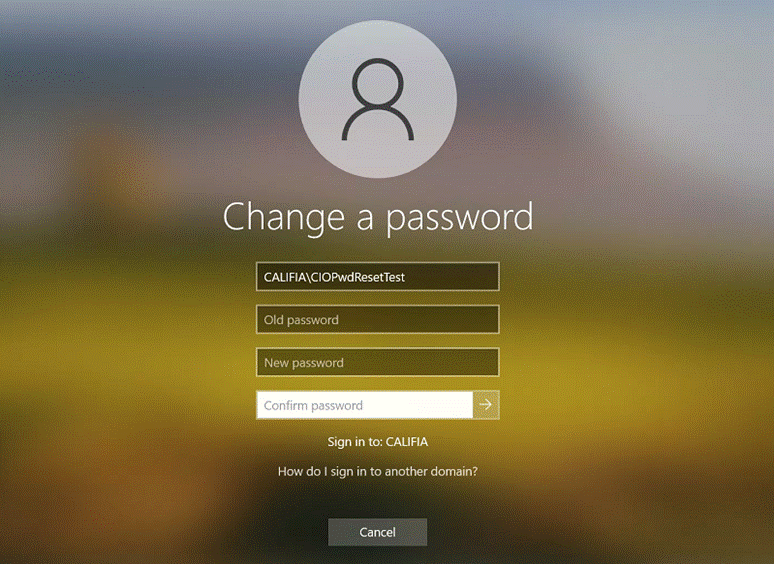
- Your password is now updated.
Hybrid Staff
Before Your Password Expires
15-days before your password expires, you will receive daily e-mails encouraging you to update your password.
Before the 15-days are up, you are encouraged to visit the office, connect your PC, and perform the following instructions.
If you are not able to visit the office:
- If you do not have access to a VPN, you will need to contact the Califia IT Team to get assistance with updating your password.
- If you do have access to a VPN, ensure your VPN is connected, and then perform the following instructions.
- Log into your computer as normal
- From the desktop, press and hold CTRL + ALT + DEL until the
following screen appears:
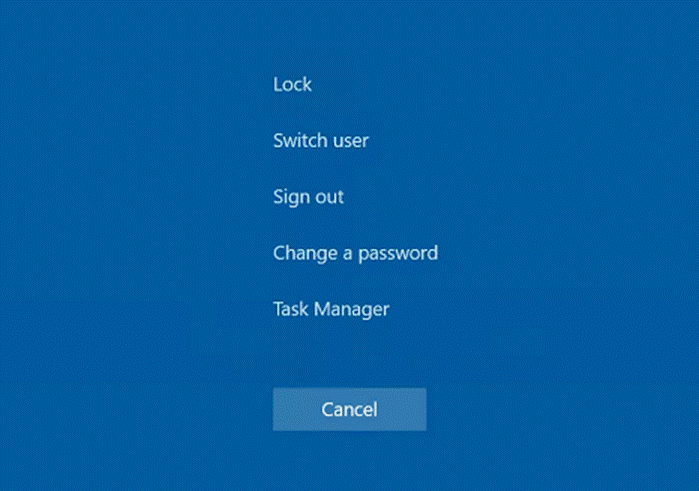
- Select “Change a password”
- On the following screen:
- Enter your Old Password
- Enter your New Password
- Enter your New Password again to confirm
- Click the Arrow button
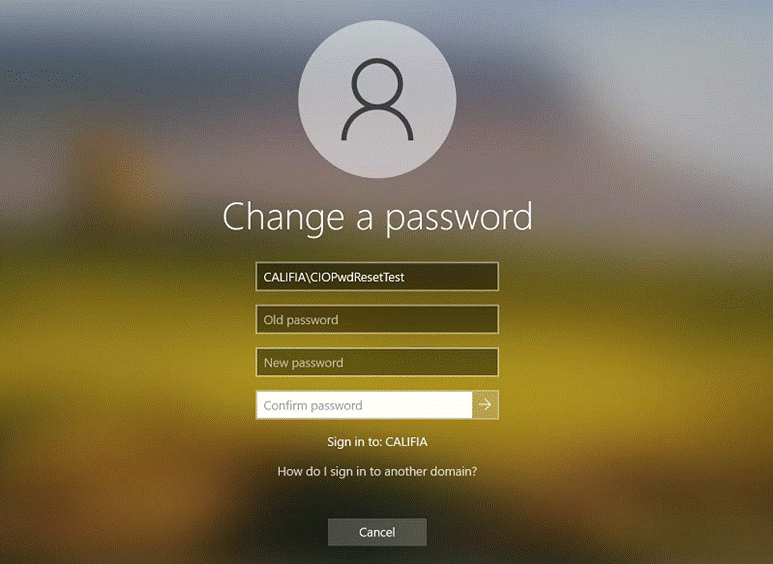
- Your password is now updated.
If Your Password Has Expired
If you had access to
the “Global Protect” VPN, your ability to log into the “Global Protect” VPN and
access to Microsoft 365 services (E-mail, Teams, etc.) will have been blocked.
the next time you are connected to the office network, you will be forced to update your password before logging in.
- Log into your PC as normal, at the following screen, click “OK”
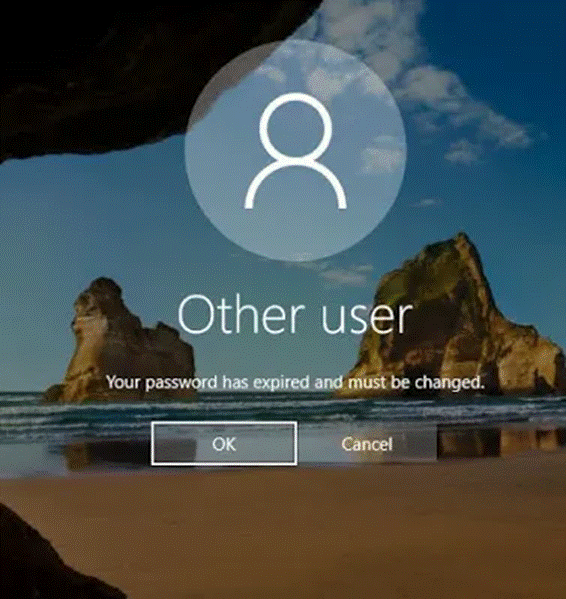
- On the following screen:
- Enter your Old Password
- Enter your New Password
- Enter your New Password again to confirm
- Click the Arrow button
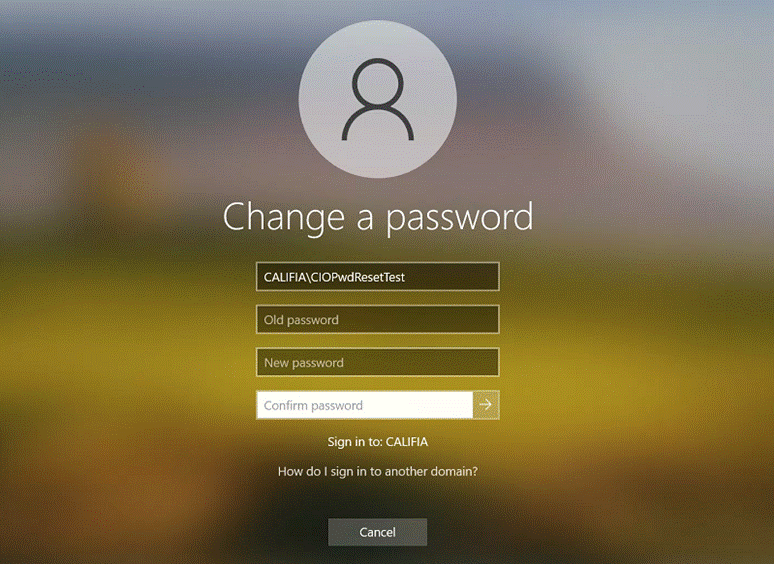
- Your password is now updated.
Staff
Working Remotely
Before Your
Password Expires
15-days before your password expires, you will receive daily e-mails encouraging you to update your password.
To update your password, ensure your VPN is connected, and then perform the following instructions.
- Log into your computer as normal
- From the desktop, press and hold CTRL + ALT + DEL until the
following screen appears:
- Select “Change a password”
- On the following screen:
- Enter your Old Password
- Enter your New Password
- Enter your New Password again to confirm
- Click the Arrow button
- Your password is now updated.
If Your Password Has Expired
Your ability to log into the “Global Protect” VPN and access to Microsoft 365 services (E-mail, Teams, etc.) will have been blocked.
Please contact the Califia IT team by submitting a ticket at: http://www.califiait.com which may be accessed from any browser on any device. If this is an emergency, please call: (661) 615-5650.
- Log into your PC as normal, at the following screen, click “OK”
- On the following screen:
- Enter your Old Password
- Enter your New Password
- Enter your New Password again to confirm
- Click the Arrow button
- Your password is now updated.
If Your Password Has Expired
Your ability to log into the “Global Protect” VPN and access to Microsoft 365 services (E-mail, Teams, etc.) will have been blocked.
You will need to get
in contact with the Califia IT team, by phone, to assist with resetting your
password, thereby unlocking access to your account.
Staff Not
Issued a Califia Farms PC, Mac Users and Contractors
Before Your Password Expires
15-days before your password expires, you will receive daily e-mails encouraging you to update your password.
To update your password:
- Use a web-browser such a Google Chrome via PC or smartphone, and navigate to: https://office.com
- Click the Sign-In button in the upper right of the page, and log in. Keep your phone handy as you will need to authenticate via Multi-Factor Authentication (MFA).
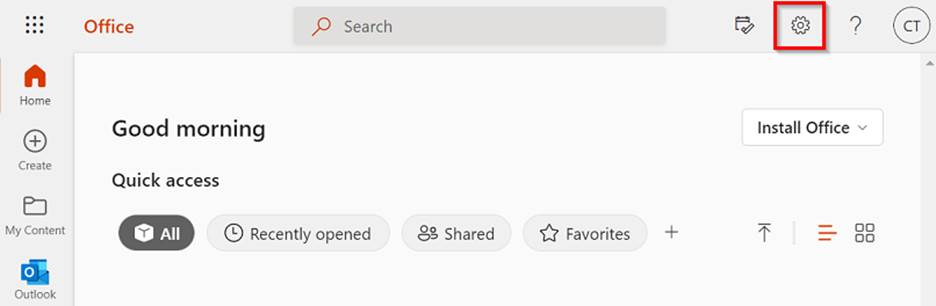
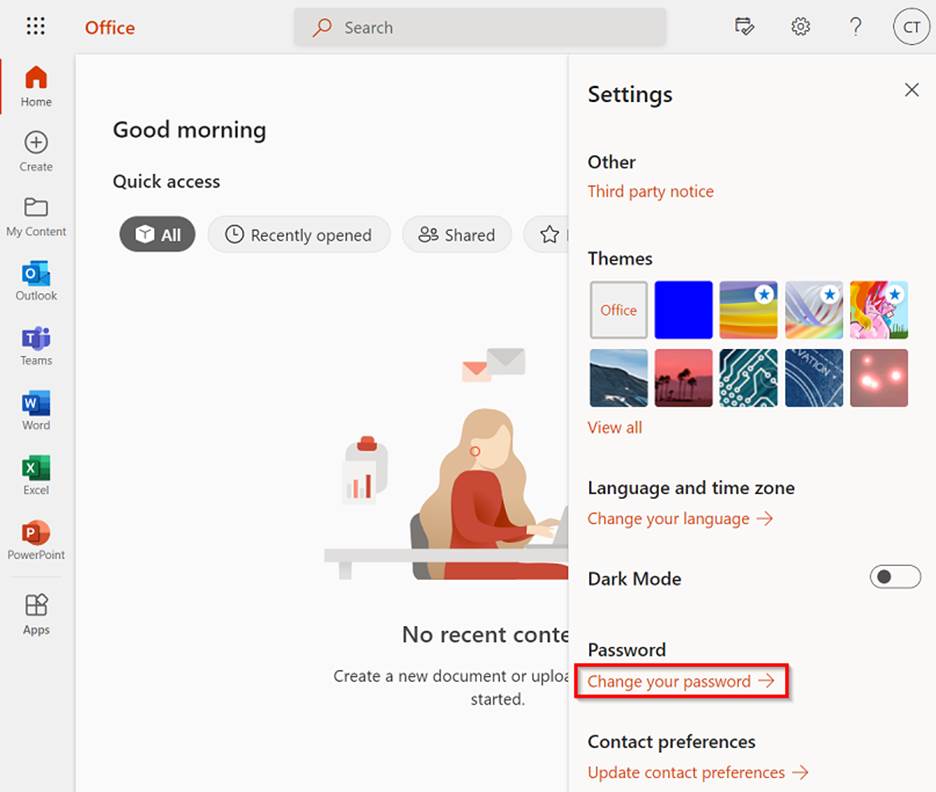
- Click on the gear
 icon near the upper right corner of the
page
icon near the upper right corner of the
page
- Click on “Change your password” in the pop-out menu on the right
- Fill out the form and submit:
- Enter your old password
- Enter your new password
- Enter your new password again to confirm
- Click Submit

- Your password is now updated.
If Your Password
Has Expired
Your access to
Microsoft 365 services (E-mail, Teams, etc.) will have been blocked.
Please contact the Califia IT team by submitting a ticket at: http://www.califiait.com which may be accessed from any browser on any device. If this is an emergency, please call: (661) 615-5650.
Ross Users Only (Update The New Password in Ross)
After
you changed your password
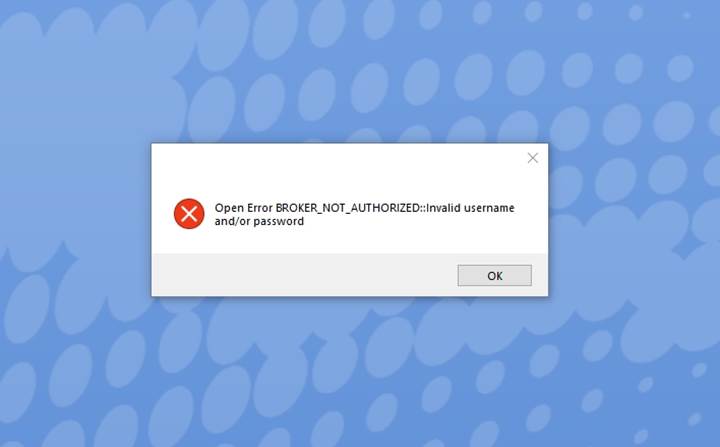
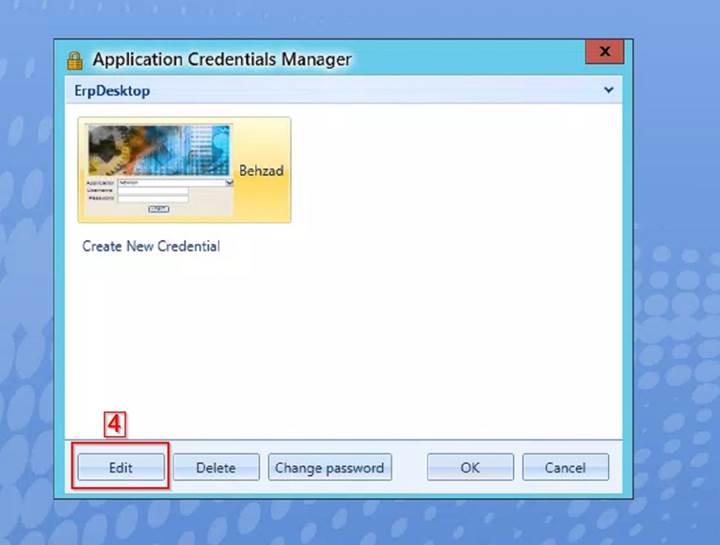
When you log in to the Ross application for the first time after the password change, you will see this screen and need to update/re-enter your new password for Ross.
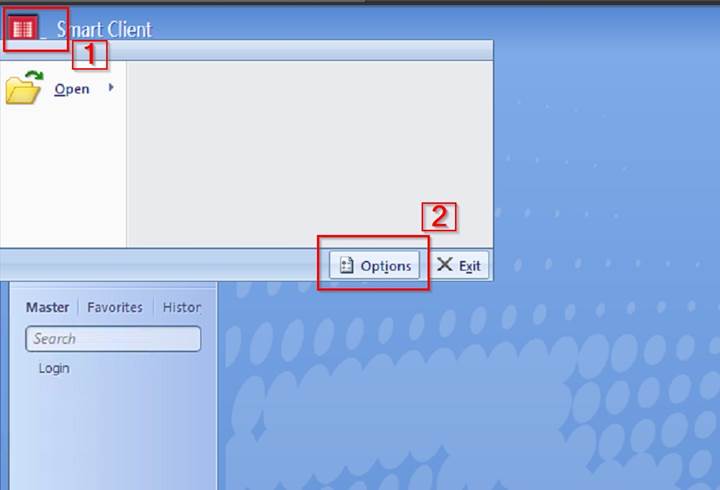
Please follow the screenshots, update the password field with your new password, click OK, then OK and OK. Close Ross. Reopen Ross and you should be logged in.
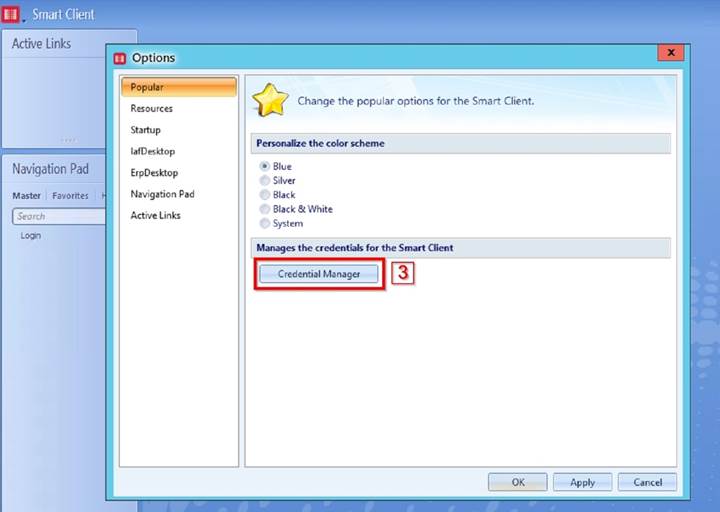
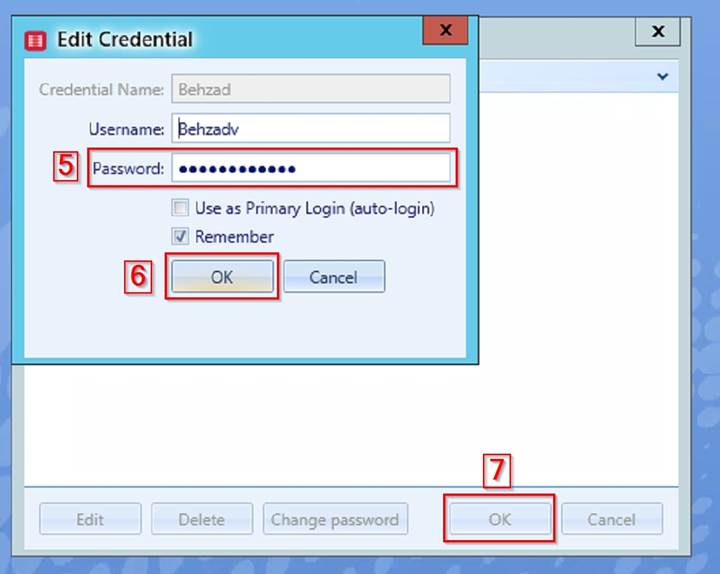
Remember you need to close Ross and open it again.
Please contact the Califia IT team by submitting a ticket at: http://www.califiait.com if you need help.
Thanks
Califia Farms IT Department